
YouCut - Video Editor & Maker
InShot Video EditorVideo Players & Editors
4.8134.65K Reviews
- Version
- 1.722.1225
- Installs
- 100.00M
- Age Rating
- Everyone
Screenshots

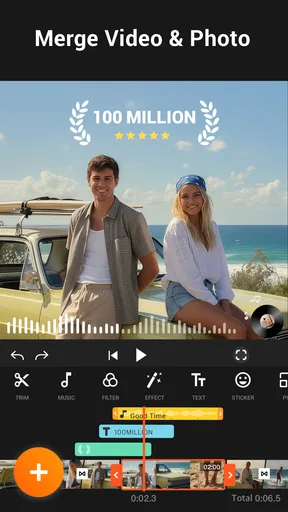
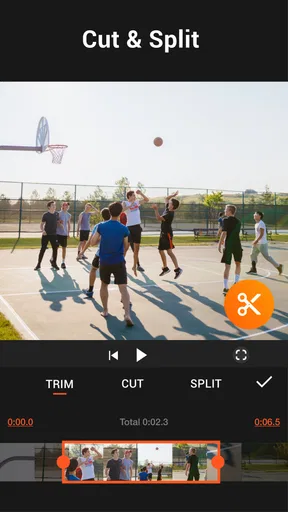
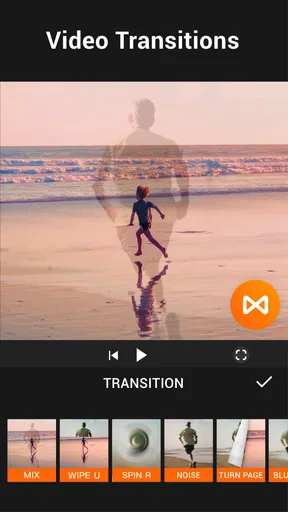

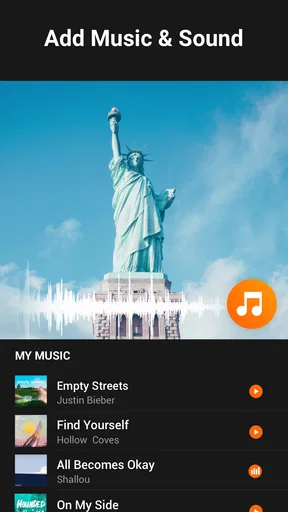
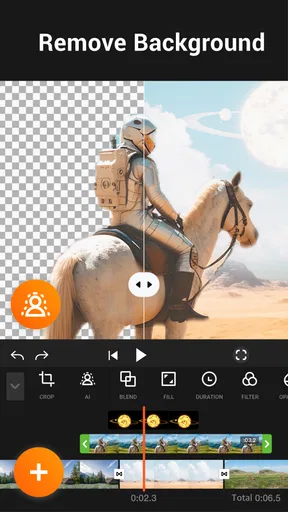
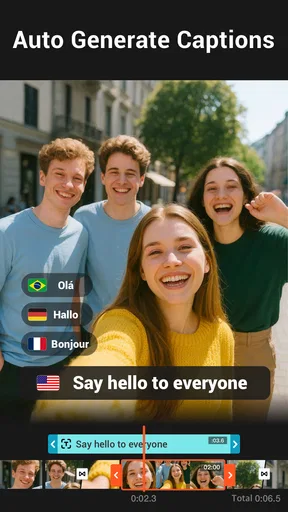
Our Review of YouCut - Video Editor & Maker
 Analysis by Appyee
I see YouCut - Video Editor & Maker as a practical pocket editor for people who want to turn clips into a shareable video without first learning a desktop editing program. Its strongest appeal is the balance between quick, approachable edits and useful controls such as trimming, merging, changing the frame shape, and adjusting speed. It is not a replacement for a full professional timeline, but for everyday projects I would rather open it than wrestle with complicated software just to make a short, tidy clip.
A useful fit for everyday footage
The app makes the most sense when your source material is already on your phone and your goal is clear: shorten a clip, join a few moments, add music, or prepare a version that fits a social feed. For instance, after a family outing, I might select a few short clips, remove the shaky starts and stops, put them in a simple sequence, and choose a suitable aspect ratio before saving. That kind of small job is where a phone editor can save time without making the process feel like a project.
I also like that this sort of workflow encourages a useful habit: decide where the video will be watched before polishing it. A vertical cut for a phone feed and a wider version for a screen are not just different crops; the framing can change what deserves to stay in the edit. I would make a duplicate or keep the original clips untouched before experimenting, then create separate versions when the same footage needs to work in different places.
What to check before you spend time editing
Before building a longer edit, I would import a short test clip and try the steps I expect to use: trim it, add a sound layer, adjust the frame, and export a sample. This is a simple way to learn where the controls are and see whether the finished file suits the intended destination. It also avoids spending time arranging a whole sequence before discovering that a particular look or crop is not what I wanted.
Music deserves a little care. A soundtrack can make a quick montage feel connected, but it can also overpower speech or the natural sound that gives a moment its character. I would listen once with the music on and once with it lowered or removed, especially for clips with people talking. If a voiceover is the focus, keep the words clear first and treat background music as support rather than the main event.
Getting Started: First Impressions
As soon as I downloaded YouCut, I was struck by its clean and intuitive interface. It doesn’t overwhelm you with too many options right off the bat, which is perfect for both beginners and seasoned editors who just want to get things done. The layout is user-friendly, with all the essential tools easily accessible from the main screen. No need to hunt for features buried in endless menus!
Features Galore
What sets YouCut apart from other mobile editors is its rich set of features. You can trim, cut, and merge videos with just a few taps. The app also offers impressive filters and transitions that can give your videos a professional touch. Feeling creative? Try adding some of the cool effects or stickers to make your video pop.
One feature I found particularly handy is the ability to adjust the aspect ratio. Whether you’re creating content for Instagram, YouTube, or TikTok, YouCut has got you covered. You can easily switch between different ratios to ensure your video looks great on any platform.
Music and Audio Editing
Let’s talk about audio. YouCut provides a decent library of royalty-free music you can use to enhance your videos. You can also import your own music or record voiceovers directly within the app. The audio editing capabilities are surprisingly robust, allowing you to adjust volume levels and add fade effects.
Speed Control and Video Compression
Another standout feature is the speed control, which lets you create slow-motion or fast-motion videos effortlessly. This feature is perfect for highlighting specific moments or adding dramatic effects. Plus, if storage space is a concern, YouCut offers video compression without sacrificing quality, making it easy to share your creations without taking up too much space on your device.
Exporting and Sharing
After crafting your masterpiece, YouCut makes exporting a breeze. You can save videos in various resolutions, ensuring the best quality for your needs. Sharing options are plentiful—you can directly upload to social media or save to your device for later use. The export process is quick and efficient, so you won’t be left waiting.
And here's a little bonus: no pesky watermarks on your videos! That’s right, YouCut lets you create and share your work watermark-free, which is a big plus in my book.
Where it sits among mobile editors
Compared with the usual alternatives, YouCut is most appealing when speed and convenience matter more than deep control. A social platform’s built-in editor can be quicker for a one-off post, but it is tied to that posting workflow. A general mobile editor may offer a more elaborate arrangement of layers and effects, which is useful for a carefully produced piece but can make a simple trim feel like overkill. YouCut sits between those approaches: it gives me more room to shape a clip than a basic posting tool, without asking me to treat every short video like a production.
That middle ground is also a limit. If I needed meticulous control over many audio and video layers, detailed color work, or a repeatable professional editing pipeline, I would choose a more specialized editor on a larger screen. The phone-first convenience is a real strength, but it does not erase the physical constraints of editing on a small display. Precision work can become fiddly, and a dense project is harder to review when the preview itself is compact.
Small decisions that improve the result
For a cleaner cut, I would watch the transition point rather than trimming only by instinct. A clip can look fine while scrubbing but feel abrupt once played in sequence, especially if the movement or sound changes sharply. I tend to review the edit from a moment before each cut through a moment after it; that quick pass catches awkward jumps before export. Keeping transitions restrained also helps ordinary footage feel coherent instead of overdecorated.
Speed changes are best used with a reason. Slowing a brief gesture or accelerating an uneventful stretch can give a sequence rhythm, but changing the pace repeatedly may distract from what the video is actually showing. I would first assemble the story at normal speed, then adjust only the moments that benefit from emphasis. Likewise, filters are easier to judge when applied consistently across related clips; a collection of individually attractive looks can make one short video feel visually uneven.
Aspect ratio is not merely an export setting to leave until the end. If a person or object sits close to the edge of the original frame, a tighter crop may cut off something important. I would switch to the intended shape early and check the framing of every clip, especially when mixing portrait and landscape footage. That small check can prevent a finished edit from looking accidentally cramped.
Who will enjoy it, and who may not
I would recommend it to someone who edits occasional travel clips, birthday moments, quick tutorials, or short updates and wants an approachable set of tools on a phone. It also suits a beginner who wants to learn the basics of sequencing and framing without starting with a complicated desktop interface. The app is free to install, and its Everyone age rating makes it broadly accessible; optional in-app purchases range from $2.99 to $59.99 per item, so I would check the purchase details before choosing anything paid.
I would be more cautious if your work depends on fine-grained control, a large library of carefully organized projects, or a long edit with many elements that need constant adjustment. A touchscreen is convenient for quick choices, but it is less comfortable for detailed, repeated corrections. People who only need to add a caption or cut a few seconds from a clip may also find a built-in phone or social-app editor sufficient. The right choice depends less on which app has the longest feature list and more on how much control the particular video needs.
For a realistic everyday use, imagine making a short recap after a school event or weekend trip. I would first pick only the clips that contribute something different, rather than including every recording; then trim pauses, arrange the moments in a clear order, and set the frame for the place I plan to share it. I would keep spoken audio audible, add music only if it improves the mood, and watch the full result once before saving. This workflow is deliberately modest, but it is exactly where a straightforward mobile editor earns its place.
YouCut is from InShot Video Editor, a developer name many mobile creators will recognize. The app has a 4.8 average from around 8.4 million ratings, with over 100 million installs, which gives it a large user base. It first appeared on October 15, 2014, and version 1.702.1215 requires Android 8.0 or later. Those details are useful when checking device compatibility, but I would still judge the editor by whether its controls feel comfortable for the kind of clips I actually make.
Final thoughts: a capable editor with a clear lane
In a world where content creation is king, having a reliable video editor on your phone is invaluable. YouCut - Video Editor & Maker is packed with features that cater to both amateurs and pros, making it an excellent choice for anyone looking to edit videos on the go. Its ease of use, combined with powerful editing tools, makes it a standout in the crowded app market.
If you’re looking for an app that delivers quality results without the hassle, YouCut should definitely be on your radar. So go ahead, unleash your creativity, and let YouCut help you bring your video visions to life!
My verdict
My recommendation is strongest for phone-first creators who value a quick route from raw clips to a finished, shareable video. I would not pick it for every editing job, and I would move to a more detailed tool when a project demands fine control. But for trimming, combining, reframing, and polishing everyday footage without opening a laptop, it offers a sensible balance. If that is the kind of editing you do, it is worth trying; if your edits are complex by nature, choose a tool built for that depth instead.
Privacy and Permissions
See what permissions an app requests and how it handles your data.
- Photos/Media/Files
- read the contents of your USB storage, modify or delete the contents of your USB storage
- Storage
- read the contents of your USB storage, modify or delete the contents of your USB storage
- Microphone
- record audio
- Wi-Fi connection information
- view Wi-Fi connections
- Other
- view network connections, full network access, control vibration, prevent device from sleeping, Google Play license check, read Google service configuration
Verdict
Strengths of YouCut - Video Editor & Maker
- Intuitive user interface for easy editing.
- Wide variety of editing tools available.
- Supports high-quality video exports.
- No watermark in free version.
- Regular updates with new features.
Limitations of YouCut - Video Editor & Maker
- Contains in-app ads that can be intrusive.
- Limited features in free version.
- Some tools require a purchase.
- Occasional performance lags.
- No advanced editing features.
Other Releases by InShot Video Editor
View All
Video Editor & Maker - InShot
Photography4.8

Video Editor, Maker -VideoCook
Video Players & Editors4.8

Video Maker
Video Players & Editors4.8
Similar Picks in This Category
View All
Google TV
Google LLC3.9

iTunes
Apple4.7

YouTube
Google LLC3.8

MX Player
Amazon Mobile LLC4.2

CapCut - Video Editor
Bytedance Pte. Ltd.3.5

PLAYit-All in One Video Player
PLAYIT TECHNOLOGY PTE. LTD.4.5
Frequently Asked Questions
What features does YouCut - Video Editor & Maker offer?
YouCut provides a comprehensive suite of editing tools, including trimming, cutting, and merging videos. It offers various filters, effects, and the ability to add music or text to your videos. The app also supports high-resolution exports and offers a user-friendly interface, making video editing accessible even for beginners.
Is YouCut - Video Editor & Maker free to use?
Yes, YouCut is free to download and use, but it offers in-app purchases. These purchases unlock additional features and remove ads. While the free version is robust and functional, the premium version offers enhanced tools and a more streamlined experience without interruptions.
Does YouCut add a watermark to edited videos?
No, YouCut is one of the few video editing apps that does not automatically add a watermark to your edited videos. This is a significant advantage for users who want to share their creations without any branding, ensuring a professional look for personal or promotional projects.
Is YouCut suitable for beginners?
Absolutely, YouCut is designed with an intuitive interface that caters to beginners. The app provides easy-to-follow tutorials and a straightforward layout, allowing users to quickly learn how to edit videos. Its simplicity doesn't compromise functionality, making it a great choice for both novices and experienced editors.
What are the system requirements for using YouCut?
YouCut is available for Android devices and requires Android version 5.0 or higher. The app is optimized for smooth performance across most devices, but for the best experience, a device with a decent processor and sufficient RAM is recommended to handle video editing efficiently.
